This guide walks you through creating a new in-stock product directly within the Point of Sale (POS) module. This powerful feature allows you to quickly add an item to your inventory and cart on the fly during a live sales transaction.
Follow these steps to efficiently add and sell new products.
Step 1: Access the Sale Module
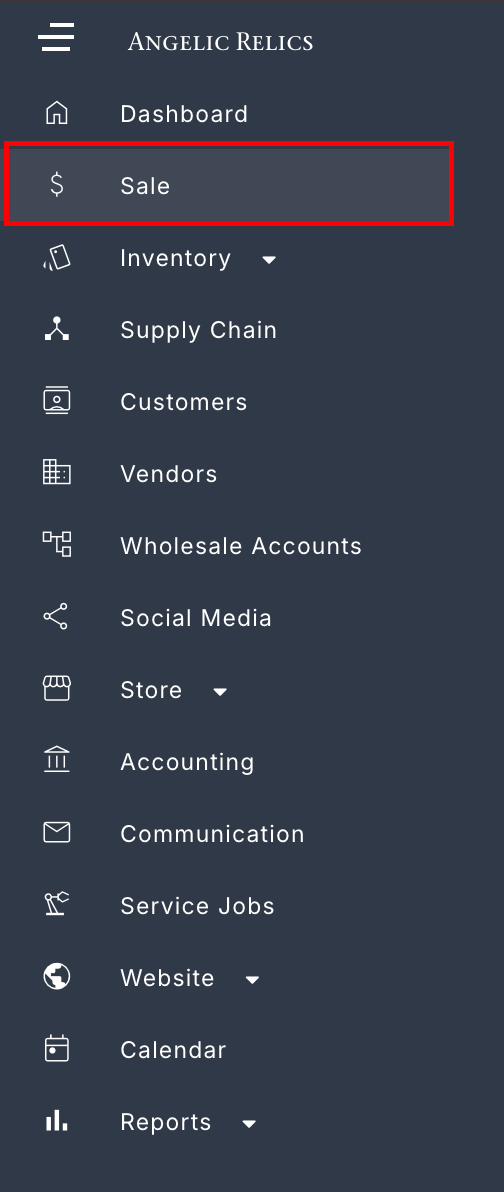
- Open your left navigation menu.
- Click on the Sale menu option.
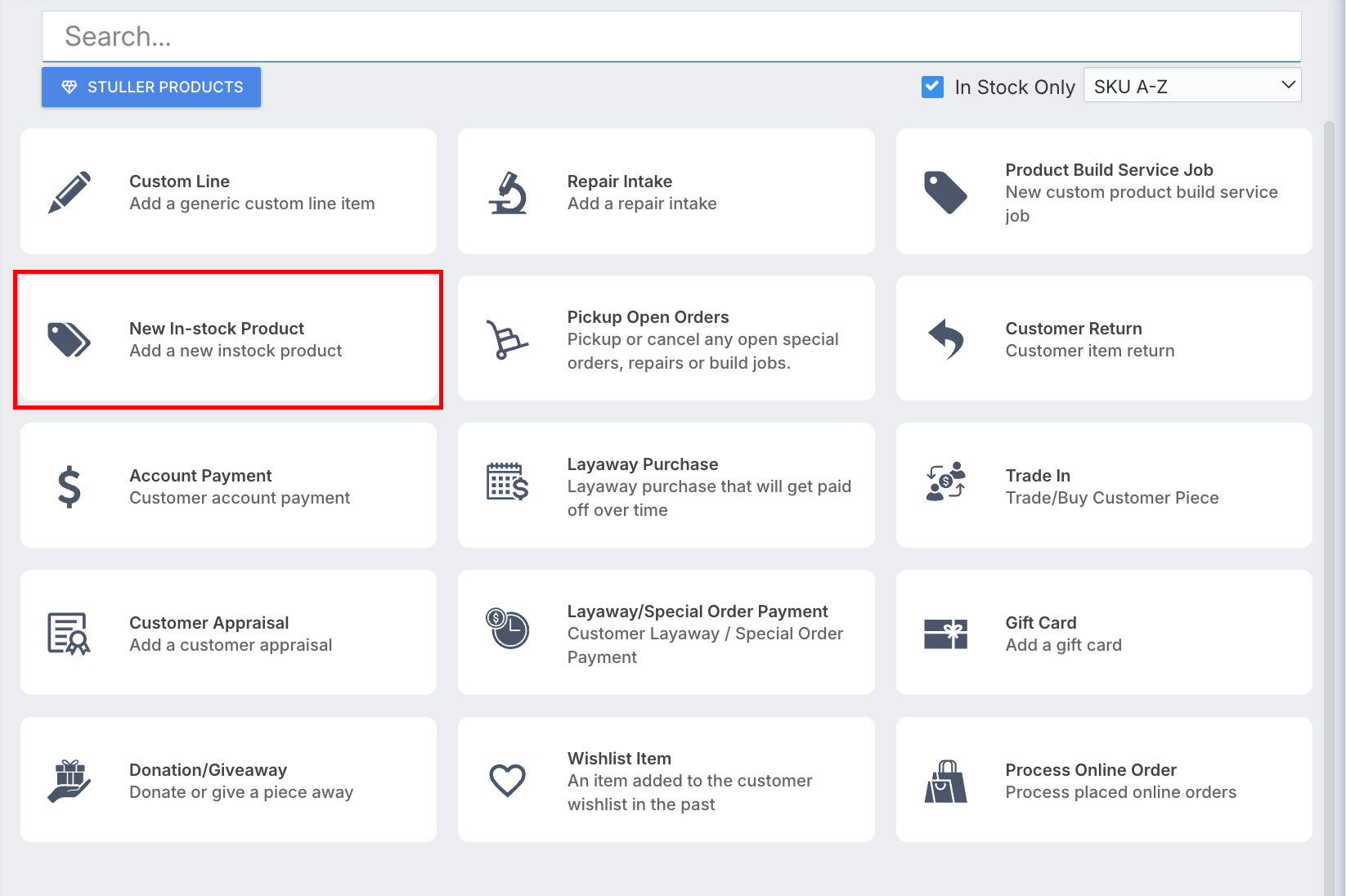
3. Locate and press the New In-Stock Product button to open the creation window.
Step 2: Fill in the Product Details
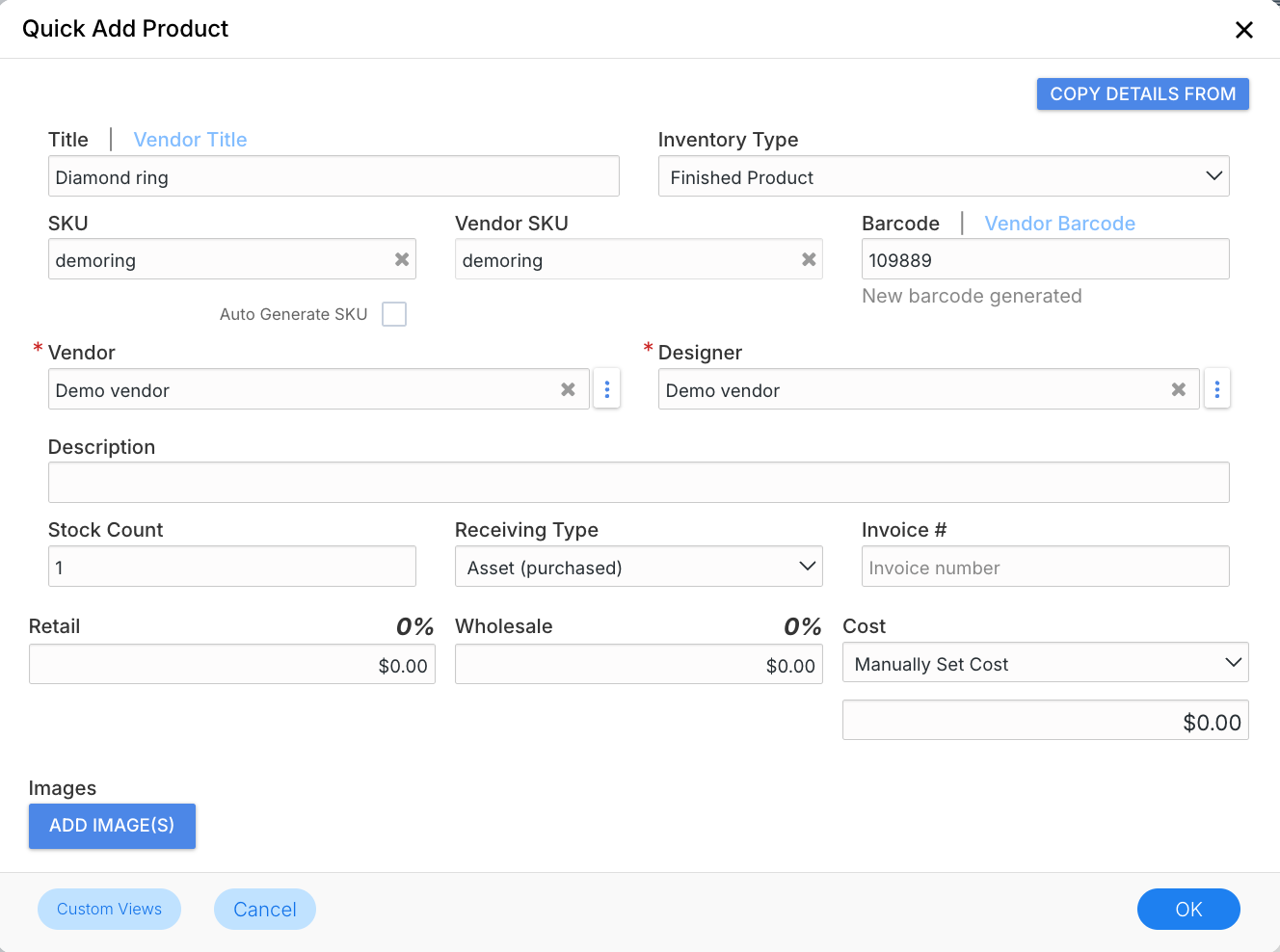
When the Quick Add Product dialog appears, enter the necessary details for your new item (for example, creating a new ring).
Select Receiving Type: Choose how the item is being entered into your system:
Asset: For purchased inventory.
Memo: For consigned inventory.
Review Stock Count:
Note: The Stock count field is defaulted to the value of 1, meaning the product will already have an in-stock quantity without needing to create a Merchandise Receive.
Once all details are accurately filled out:
Click OK.
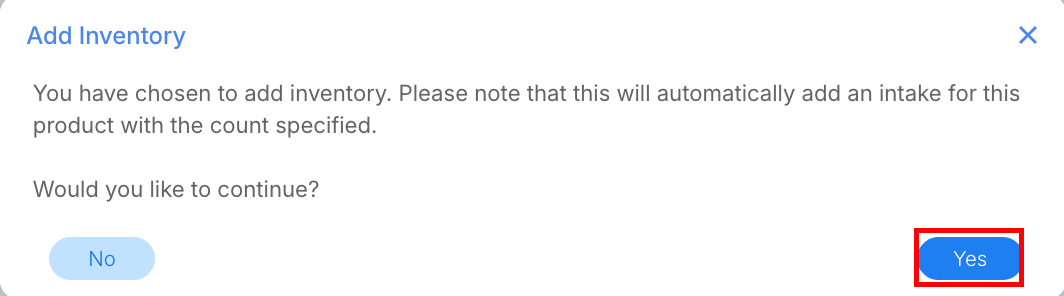
A warning prompt will appear indicating that item stock will be generated. Confirm the warning to proceed.
Step 3: Add the Product to Checkout
After confirmation, the system streamlines the process so you don't lose your momentum:
The Search Bar will automatically populate with your newly generated SKU.
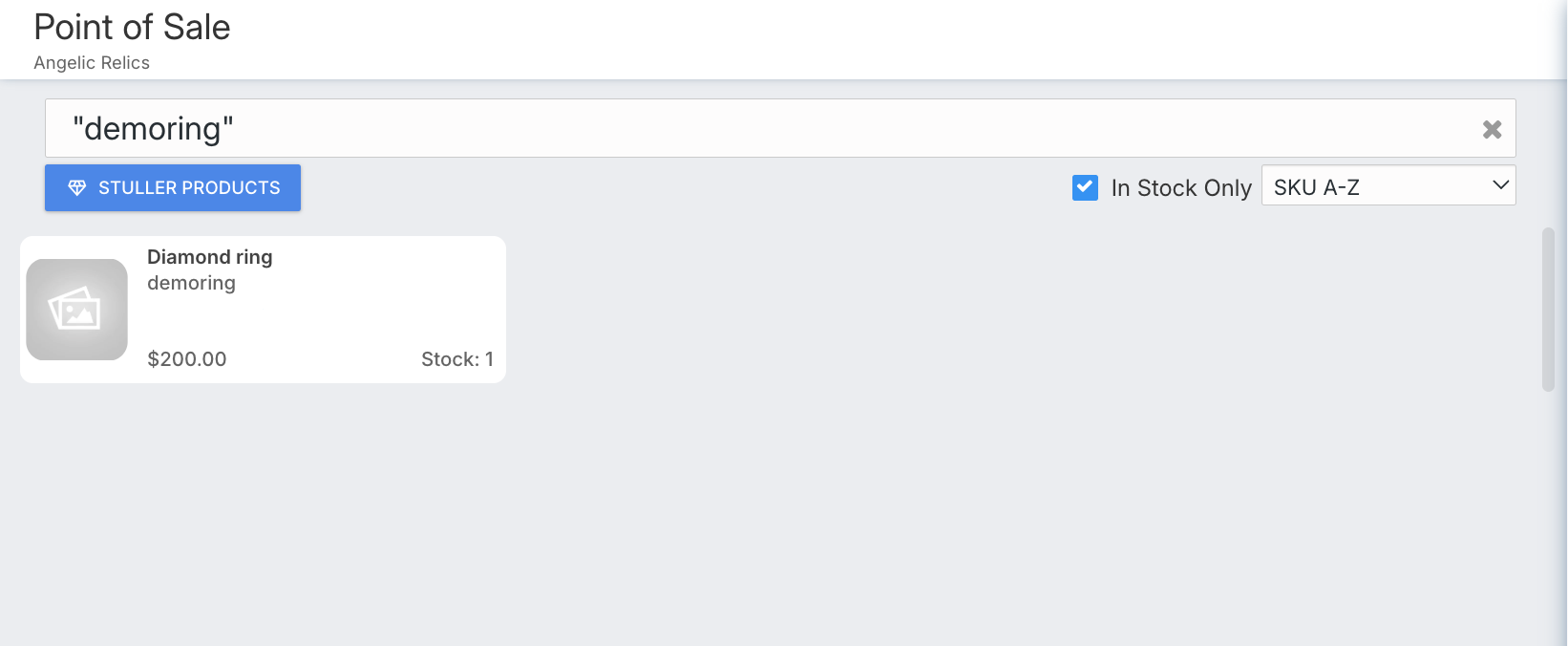
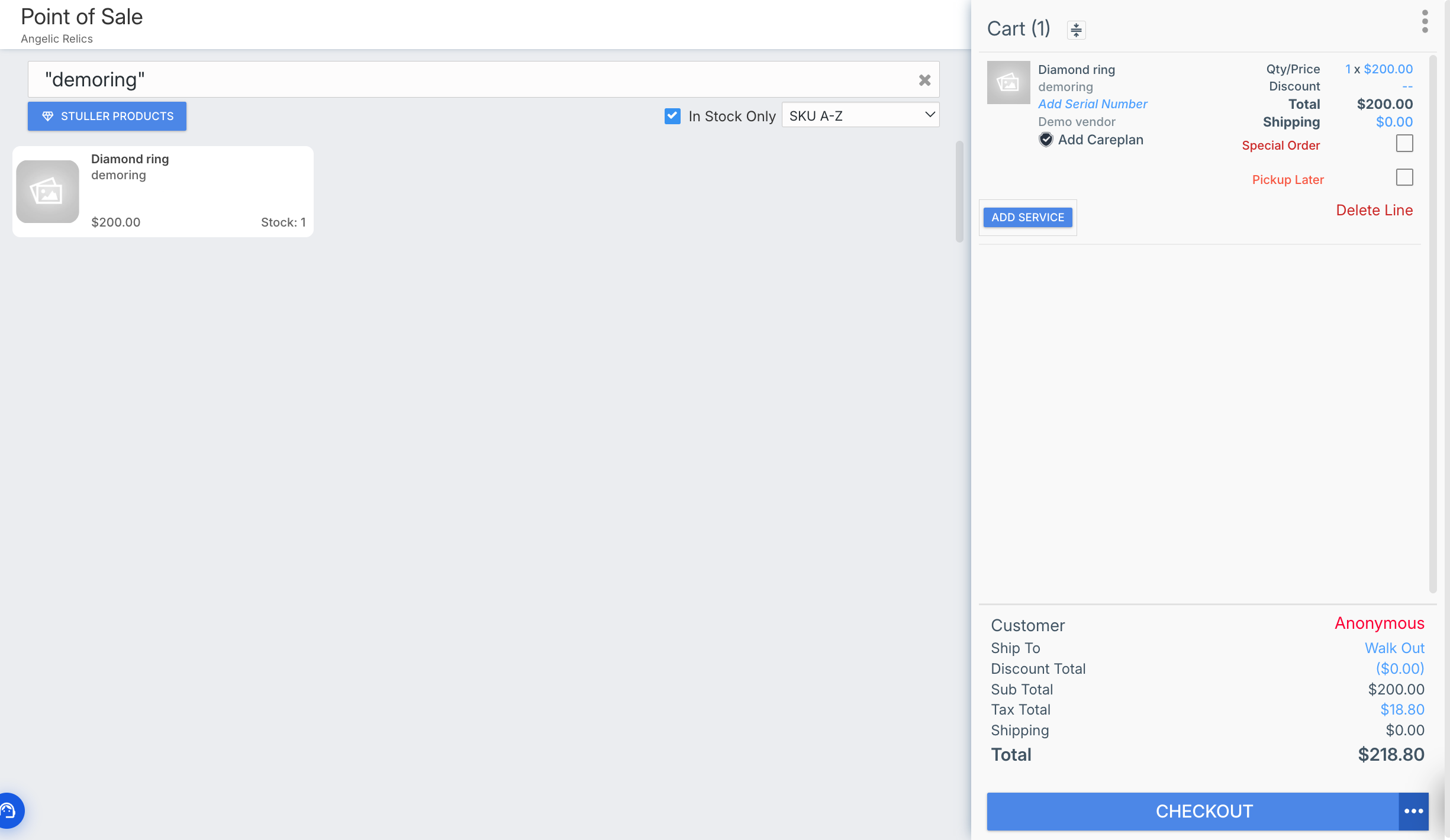
Simply left-click the product in the search results to instantly add it to your Checkout list on the right side of the screen.
Step 4: Submit the Sale
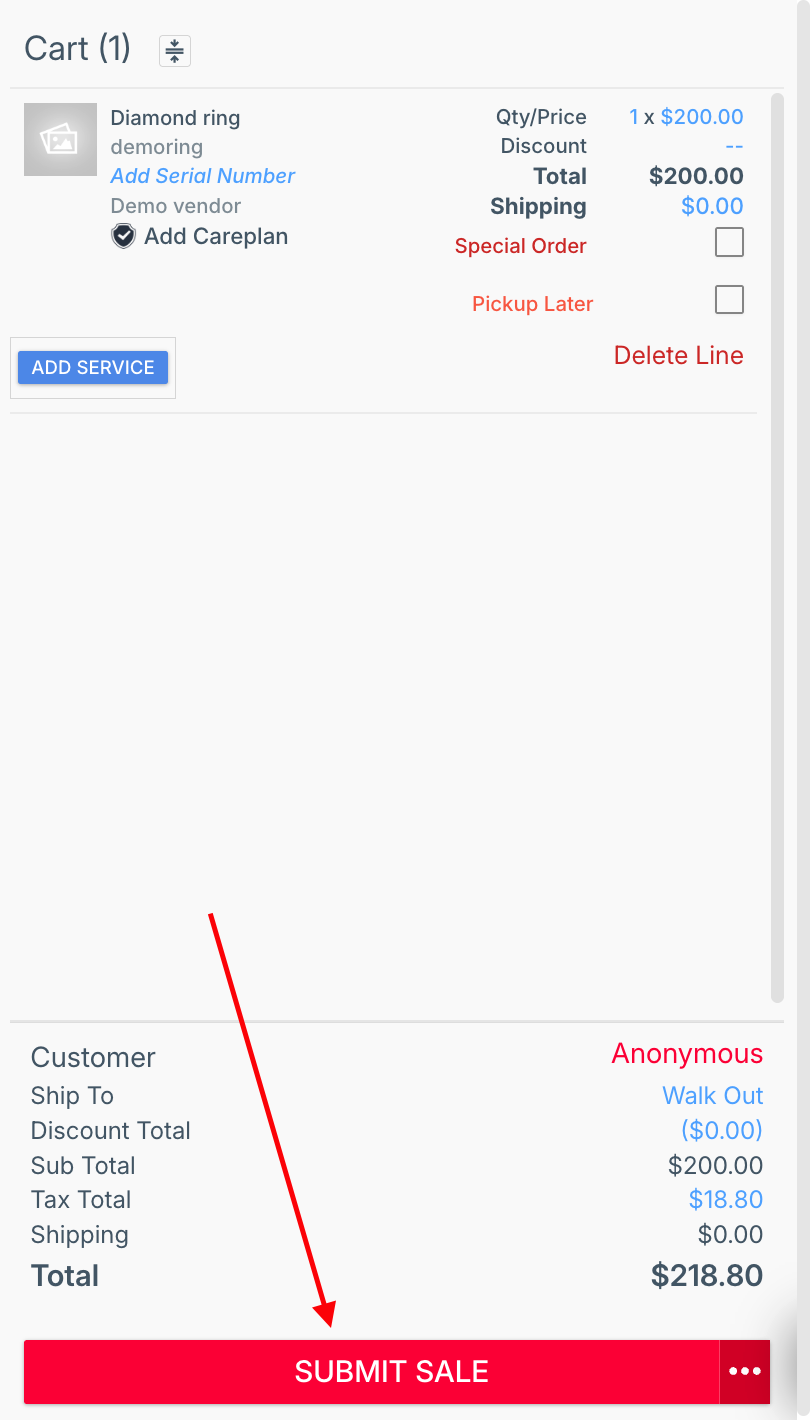
With the item successfully added to the cart, you are ready to check out.
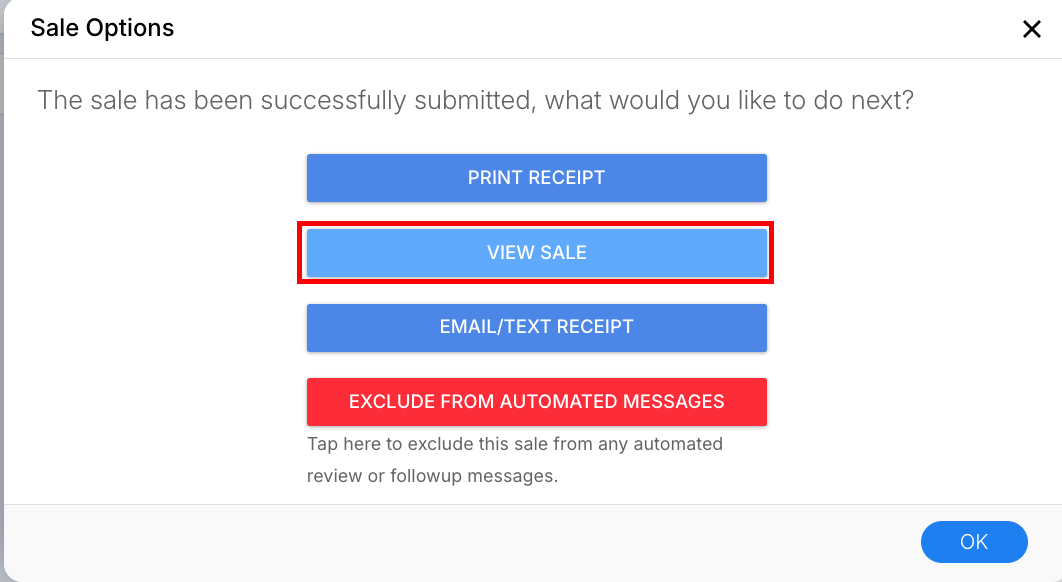
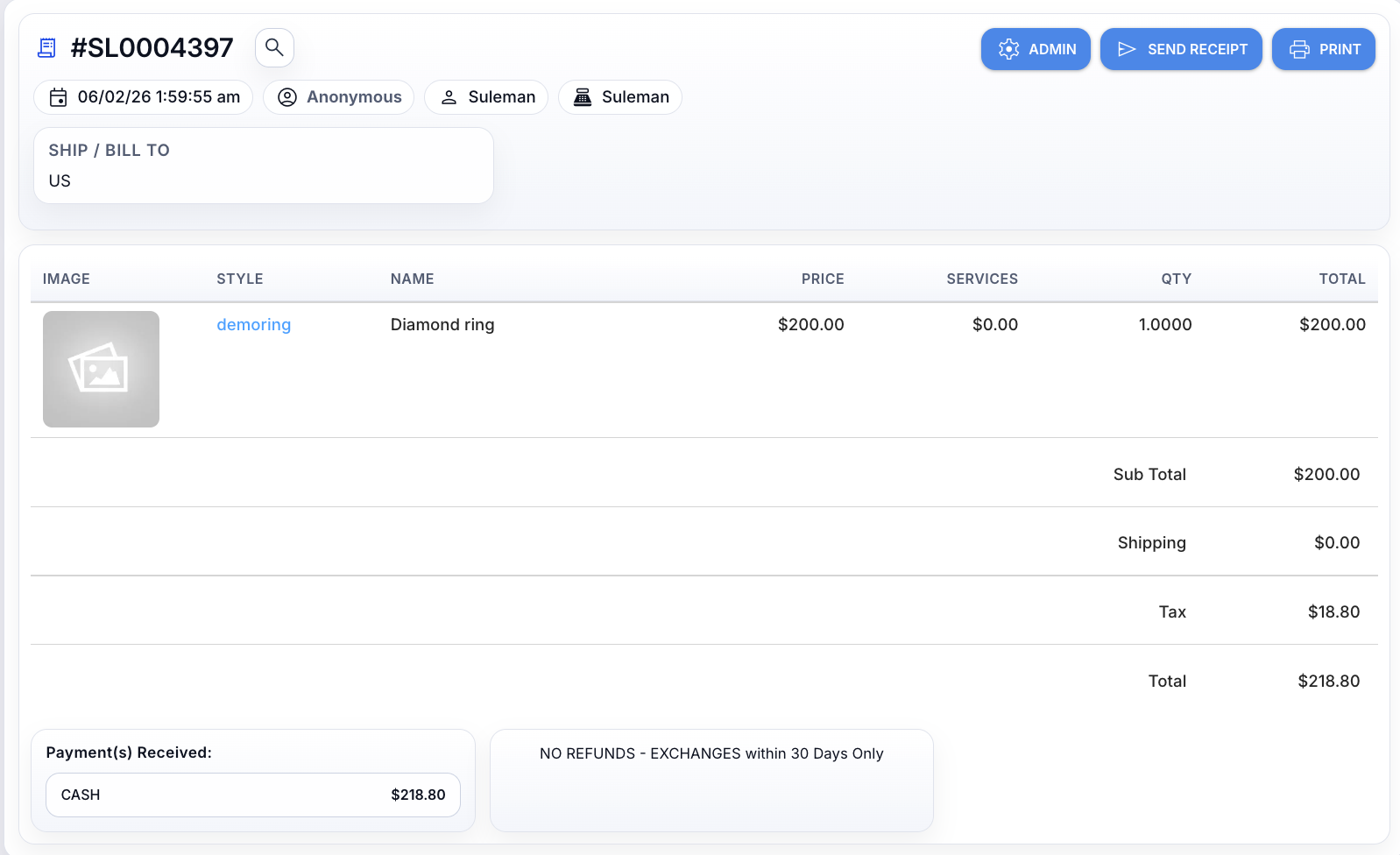
For a detailed walkthrough on finalizing the transaction, please refer to our companion guide: Submitting a New Sale through the POS. Feel free to follow those steps to complete your sale!
Troubleshooting
If you encounter any issues while trying to submit a New Sale through the POS, please reach out to Flawless POS customer support for technical assistance.
Was this article helpful?
That’s Great!
Thank you for your feedback
Sorry! We couldn't be helpful
Thank you for your feedback
Feedback sent
We appreciate your effort and will try to fix the article